> ## Documentation Index
> Fetch the complete documentation index at: https://docs.sreagent.app/llms.txt
> Use this file to discover all available pages before exploring further.
# Find and reclaim cloud waste
> Review idle, over-provisioned and orphaned resources, assign owners, and resolve cost findings from the Efficiency and FinOps pages.
export const Plan = ({tier}) => {tier} plan;
SRE Agent prices the workloads it discovers in your AWS account and Kubernetes clusters and lists what is idle, over-provisioned or orphaned, with a monthly saving beside each finding. You decide what to reclaim, who owns each workload, and which findings to dismiss.
Cost and capacity are the same measurement read from opposite ends, so they share one entry point. Connect an AWS or Kubernetes data source first so there is something to price.
 ## See the whole estate on Efficiency
Click **Efficiency** in the **Infrastructure** section of the sidebar. Three tiles summarize the
estate: **Reclaimable** (monthly saving from idle or over-provisioned workloads), **At risk**
(workloads running hot) and **Unowned** (workloads nobody would be told about).
The tabs are **All**, **Waste**, **Risk**, **Unowned** and **Unmeasured**. Each row shows the
workload, its owner, its utilisation, a size label (**Idle**, **Over-provisioned**,
**Right-sized**, **Saturated** or **Not measured**) and the monthly opportunity.
Click **Cost detail** for findings and ownership, which is the FinOps page below. **Capacity
detail** holds the forecast.
**Not measured** means the workload was discovered but no utilisation reading came with it. It is
not the same as right-sized. If nothing is measured, run a scan from **Cost detail** and check
that the metrics data source for the account is connected.
## Work the findings
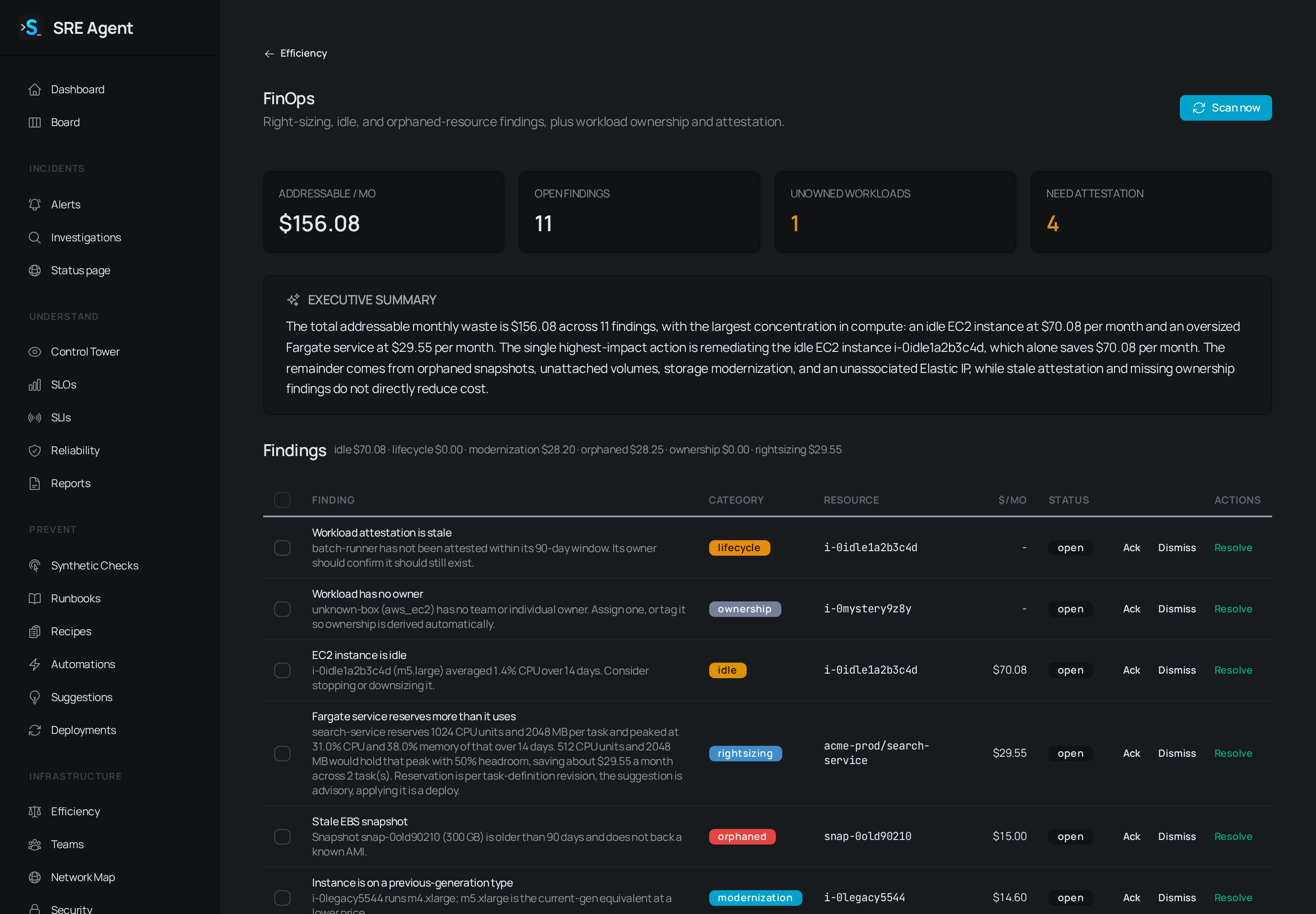
The **FinOps** page starts with four tiles: **Addressable / mo**, **Open findings**, **Unowned
workloads** and **Need attestation**. A line under them says what the last scan read and how
fresh it is. Findings can be a little behind the AWS console.
Click **Scan now** (member role). The page tells you the scan is queued and refreshes when it
finishes.
The **Executive summary** is a short narrative over the numbers in the tiles. It never
introduces figures of its own. Each finding row has a title, description, category, the
resource, the saving in `$/mo` and a status. The categories are rightsizing, idle,
modernization, orphaned, ownership and lifecycle. When the page can tell who created a resource,
it says so under the finding.
Click **Ack** to say you have seen it, **Dismiss** if it is not worth acting on, or **Resolve**
once the resource is fixed or removed. To handle several at once, tick the rows and use **Ack**,
**Dismiss** or **Resolve** in the bar that appears.
Reclaiming the resource itself happens in your own tooling. The page tracks the finding and the saving, and the next scan confirms the change.
## Assign owners and attest
The **Workload inventory** below the findings lists every active workload with its source (**k8s**, **ECS**, **EC2** or **Lambda**), its owner and whether it is attested.
Use the **Owner** menu: **All**, **Unowned**, or one of your teams. Teams come from the
**Teams** page.
Pick a team or a person from the owner menu on the row. To do many at once, tick the rows,
choose from **(assign owner)** and click **Apply**. **(clear owner)** removes the owner on
purpose.
When SRE Agent can tell which person created a workload and that name resembles a member's
address, the row shows an **inferred** badge and a **Confirm** button with that address. Nothing
is assigned until you click it. With rows ticked, **Confirm N suggestions** accepts every
unambiguous one.
Click **Attest** on a workload to record that somebody checked it still belongs. The status
shows **current** or **lapsed**. The number box on the row sets how many days an attestation
lasts. The date box sets when a workload is expected to be gone, and an overdue date raises a
finding.
## Who can do what
Everyone can read both pages. Scanning, owners, attestation and finding status need the member role.
## What happens next
Findings you acknowledge, dismiss or resolve drop out of the open count, and the **Addressable / mo** tile and the summary update. Control Tower can raise cost findings too.
## Related
* [Connect AWS with a read-only role](/guides/get-started/connect-aws): connect AWS so there is something to price.
* [Manage people and roles](/guides/administer/organizations-and-roles): teams that own workloads.
* [Use the Control Tower](/guides/prevent/control-tower): cost findings can also arrive here.
This documentation is built and hosted on [Mintlify](https://mintlify.com), a developer documentation platform.
## See the whole estate on Efficiency
Click **Efficiency** in the **Infrastructure** section of the sidebar. Three tiles summarize the
estate: **Reclaimable** (monthly saving from idle or over-provisioned workloads), **At risk**
(workloads running hot) and **Unowned** (workloads nobody would be told about).
The tabs are **All**, **Waste**, **Risk**, **Unowned** and **Unmeasured**. Each row shows the
workload, its owner, its utilisation, a size label (**Idle**, **Over-provisioned**,
**Right-sized**, **Saturated** or **Not measured**) and the monthly opportunity.
Click **Cost detail** for findings and ownership, which is the FinOps page below. **Capacity
detail** holds the forecast.
**Not measured** means the workload was discovered but no utilisation reading came with it. It is
not the same as right-sized. If nothing is measured, run a scan from **Cost detail** and check
that the metrics data source for the account is connected.
## Work the findings
The **FinOps** page starts with four tiles: **Addressable / mo**, **Open findings**, **Unowned
workloads** and **Need attestation**. A line under them says what the last scan read and how
fresh it is. Findings can be a little behind the AWS console.
Click **Scan now** (member role). The page tells you the scan is queued and refreshes when it
finishes.
The **Executive summary** is a short narrative over the numbers in the tiles. It never
introduces figures of its own. Each finding row has a title, description, category, the
resource, the saving in `$/mo` and a status. The categories are rightsizing, idle,
modernization, orphaned, ownership and lifecycle. When the page can tell who created a resource,
it says so under the finding.
Click **Ack** to say you have seen it, **Dismiss** if it is not worth acting on, or **Resolve**
once the resource is fixed or removed. To handle several at once, tick the rows and use **Ack**,
**Dismiss** or **Resolve** in the bar that appears.
Reclaiming the resource itself happens in your own tooling. The page tracks the finding and the saving, and the next scan confirms the change.
## Assign owners and attest
The **Workload inventory** below the findings lists every active workload with its source (**k8s**, **ECS**, **EC2** or **Lambda**), its owner and whether it is attested.
Use the **Owner** menu: **All**, **Unowned**, or one of your teams. Teams come from the
**Teams** page.
Pick a team or a person from the owner menu on the row. To do many at once, tick the rows,
choose from **(assign owner)** and click **Apply**. **(clear owner)** removes the owner on
purpose.
When SRE Agent can tell which person created a workload and that name resembles a member's
address, the row shows an **inferred** badge and a **Confirm** button with that address. Nothing
is assigned until you click it. With rows ticked, **Confirm N suggestions** accepts every
unambiguous one.
Click **Attest** on a workload to record that somebody checked it still belongs. The status
shows **current** or **lapsed**. The number box on the row sets how many days an attestation
lasts. The date box sets when a workload is expected to be gone, and an overdue date raises a
finding.
## Who can do what
Everyone can read both pages. Scanning, owners, attestation and finding status need the member role.
## What happens next
Findings you acknowledge, dismiss or resolve drop out of the open count, and the **Addressable / mo** tile and the summary update. Control Tower can raise cost findings too.
## Related
* [Connect AWS with a read-only role](/guides/get-started/connect-aws): connect AWS so there is something to price.
* [Manage people and roles](/guides/administer/organizations-and-roles): teams that own workloads.
* [Use the Control Tower](/guides/prevent/control-tower): cost findings can also arrive here.
This documentation is built and hosted on [Mintlify](https://mintlify.com), a developer documentation platform.