> ## Documentation Index
> Fetch the complete documentation index at: https://docs.sreagent.app/llms.txt
> Use this file to discover all available pages before exploring further.
# Publish a status page
> Set up a public status page with components, post incidents with an AI-drafted update, and share feeds with your customers.
export const Plan = ({tier}) => {tier} plan;
Your status page tells customers what is broken without exposing your internal alerts. Each component on it shows the status of the SLOs you link to it, and you write the incident updates customers read.
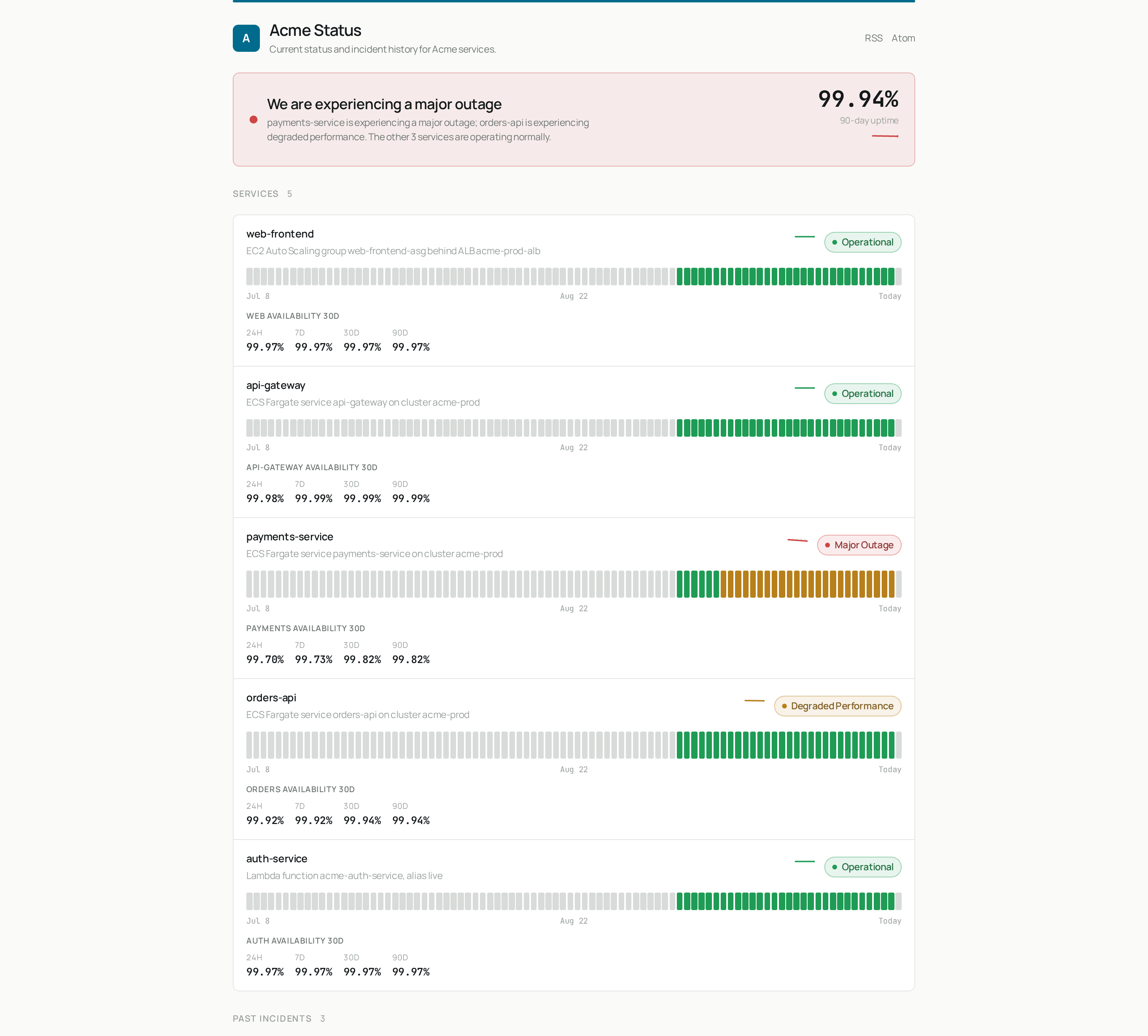 Your page lives at `https://sreagent.app/status/`, where `` is your organization slug. Organization admins and the support role manage it.
## Set up the page
Click **Status page** in the sidebar. The tabs are **Settings**, **Components** and
**Incidents**.
On **Components**, enter a **Display name** (for example `API`) and an optional **Description**.
Under **Linked SLOs**, pick every SLO that decides this component's health, then click **Add
component**. A component with no linked SLOs always reads Operational.
On **Settings**, fill in the page **Title** and **Page description**. Under **Display**, choose
a **Time zone**, **History days** (7 to 90) and whether to **Show overall uptime summary**.
Under **Visitor actions**, add a **Support URL** and decide whether to **Show feed links (RSS
and Atom)**. Click **Save**.
Click **Preview draft** to see the page before anyone else can. When it looks right, click
**Publish**. **Unpublish** takes the page offline again, and visitors get a 404 until you
republish.
A component needs at least one active SLO before you can add it. If you have none, the
**Components** tab links you to the SLO wizard and to synthetic checks, which build an
availability SLO from a probe in one click. See [Set up SLOs](/guides/prevent/slos) and [Synthetic
checks](/guides/prevent/synthetic-checks).
### Custom branding
**Logo URL** (served over https) and **Primary color** need the Business plan. On Pro, the rest of the page is fully editable and the branding fields show an upgrade prompt.
## How component status is decided
A component shows the worst status among its linked SLOs, so one burning objective is enough to mark it Degraded. Open incidents add to this: an incident linked to a component changes the status shown next to it, based on the incident's impact. An incident linked to no component posts, but changes no component status, and the incident card warns you about that.
## Open an incident
On the **Incidents** tab, find **Open a new incident**. From an alert, click **Publish to status
page** in the alert's **Status page** section instead. The title and impact are filled in for
you, and the alert's internal description and labels are deliberately not copied.
Enter a customer-safe **Title**, choose the **Initial status** (Investigating, Identified or
Monitoring) and the **Impact** (Minor, Major, Critical, Maintenance or None).
Click **Suggest draft** next to **First update (customer-facing)** to have the AI draft it, then
edit the text. You can also click **Cite context** to attach the alerts, investigations or
deploys the update is based on.
Under **Affected components**, choose the components this incident touches. This drives the
status shown beside each one.
Click **Open incident**. It appears under **Active incidents** and on your public page.
To announce planned work, fill in **Scheduled maintenance** with a start and end time (shown in the page's time zone) and use the **Maintenance** impact. It appears in its own section until the window begins.
## Post updates and resolve
Each active incident has a status dropdown and an update box. Choose the new phase (Investigating, Identified, Monitoring or Resolved), write what changed, and click **Post update**. Leave the phase as it is to post a note without changing it. The **Suggest update for next phase** buttons draft an update for the phase you choose.
An incident with no update for a while shows a **No update for ...** badge, because customers read a silent incident as abandoned. Post an update or resolve it.
Resolved incidents move to **History**. **Archive** hides one from the public page while keeping it for audit, and **Restore** brings it back.
The AI drafts from what you cite and what you have typed. Read every draft before posting it. It
is public text.
## Share the page
| What | Address |
| - | - |
| Public page | `https://sreagent.app/status/` |
| RSS feed | `https://sreagent.app/status//feed.rss` |
| Atom feed | `https://sreagent.app/status//feed.atom` |
| JSON status | `https://sreagent.app/status//status.json` |
| Status badge | `https://sreagent.app/status//badge.svg` |
Visitors follow the page in a feed reader. There is no email list, so the page never collects visitor addresses.
## Related
* [Run and read an investigation](/guides/respond/investigations): publish an incident from an investigation.
* [Triage alerts](/guides/respond/alerts): publish an incident from an alert.
* [Plan matrix](/guides/reference/plan-matrix): which plans include custom branding.
This documentation is built and hosted on [Mintlify](https://mintlify.com), a developer documentation platform.
Your page lives at `https://sreagent.app/status/`, where `` is your organization slug. Organization admins and the support role manage it.
## Set up the page
Click **Status page** in the sidebar. The tabs are **Settings**, **Components** and
**Incidents**.
On **Components**, enter a **Display name** (for example `API`) and an optional **Description**.
Under **Linked SLOs**, pick every SLO that decides this component's health, then click **Add
component**. A component with no linked SLOs always reads Operational.
On **Settings**, fill in the page **Title** and **Page description**. Under **Display**, choose
a **Time zone**, **History days** (7 to 90) and whether to **Show overall uptime summary**.
Under **Visitor actions**, add a **Support URL** and decide whether to **Show feed links (RSS
and Atom)**. Click **Save**.
Click **Preview draft** to see the page before anyone else can. When it looks right, click
**Publish**. **Unpublish** takes the page offline again, and visitors get a 404 until you
republish.
A component needs at least one active SLO before you can add it. If you have none, the
**Components** tab links you to the SLO wizard and to synthetic checks, which build an
availability SLO from a probe in one click. See [Set up SLOs](/guides/prevent/slos) and [Synthetic
checks](/guides/prevent/synthetic-checks).
### Custom branding
**Logo URL** (served over https) and **Primary color** need the Business plan. On Pro, the rest of the page is fully editable and the branding fields show an upgrade prompt.
## How component status is decided
A component shows the worst status among its linked SLOs, so one burning objective is enough to mark it Degraded. Open incidents add to this: an incident linked to a component changes the status shown next to it, based on the incident's impact. An incident linked to no component posts, but changes no component status, and the incident card warns you about that.
## Open an incident
On the **Incidents** tab, find **Open a new incident**. From an alert, click **Publish to status
page** in the alert's **Status page** section instead. The title and impact are filled in for
you, and the alert's internal description and labels are deliberately not copied.
Enter a customer-safe **Title**, choose the **Initial status** (Investigating, Identified or
Monitoring) and the **Impact** (Minor, Major, Critical, Maintenance or None).
Click **Suggest draft** next to **First update (customer-facing)** to have the AI draft it, then
edit the text. You can also click **Cite context** to attach the alerts, investigations or
deploys the update is based on.
Under **Affected components**, choose the components this incident touches. This drives the
status shown beside each one.
Click **Open incident**. It appears under **Active incidents** and on your public page.
To announce planned work, fill in **Scheduled maintenance** with a start and end time (shown in the page's time zone) and use the **Maintenance** impact. It appears in its own section until the window begins.
## Post updates and resolve
Each active incident has a status dropdown and an update box. Choose the new phase (Investigating, Identified, Monitoring or Resolved), write what changed, and click **Post update**. Leave the phase as it is to post a note without changing it. The **Suggest update for next phase** buttons draft an update for the phase you choose.
An incident with no update for a while shows a **No update for ...** badge, because customers read a silent incident as abandoned. Post an update or resolve it.
Resolved incidents move to **History**. **Archive** hides one from the public page while keeping it for audit, and **Restore** brings it back.
The AI drafts from what you cite and what you have typed. Read every draft before posting it. It
is public text.
## Share the page
| What | Address |
| - | - |
| Public page | `https://sreagent.app/status/` |
| RSS feed | `https://sreagent.app/status//feed.rss` |
| Atom feed | `https://sreagent.app/status//feed.atom` |
| JSON status | `https://sreagent.app/status//status.json` |
| Status badge | `https://sreagent.app/status//badge.svg` |
Visitors follow the page in a feed reader. There is no email list, so the page never collects visitor addresses.
## Related
* [Run and read an investigation](/guides/respond/investigations): publish an incident from an investigation.
* [Triage alerts](/guides/respond/alerts): publish an incident from an alert.
* [Plan matrix](/guides/reference/plan-matrix): which plans include custom branding.
This documentation is built and hosted on [Mintlify](https://mintlify.com), a developer documentation platform.