> ## Documentation Index
> Fetch the complete documentation index at: https://docs.sreagent.app/llms.txt
> Use this file to discover all available pages before exploring further.
# Write and run runbooks
> Install a recipe or build a runbook step by step, rehearse it with a dry run, approve it, and let it run from an alert, a schedule or a button.
export const Plan = ({tier}) => {tier} plan;
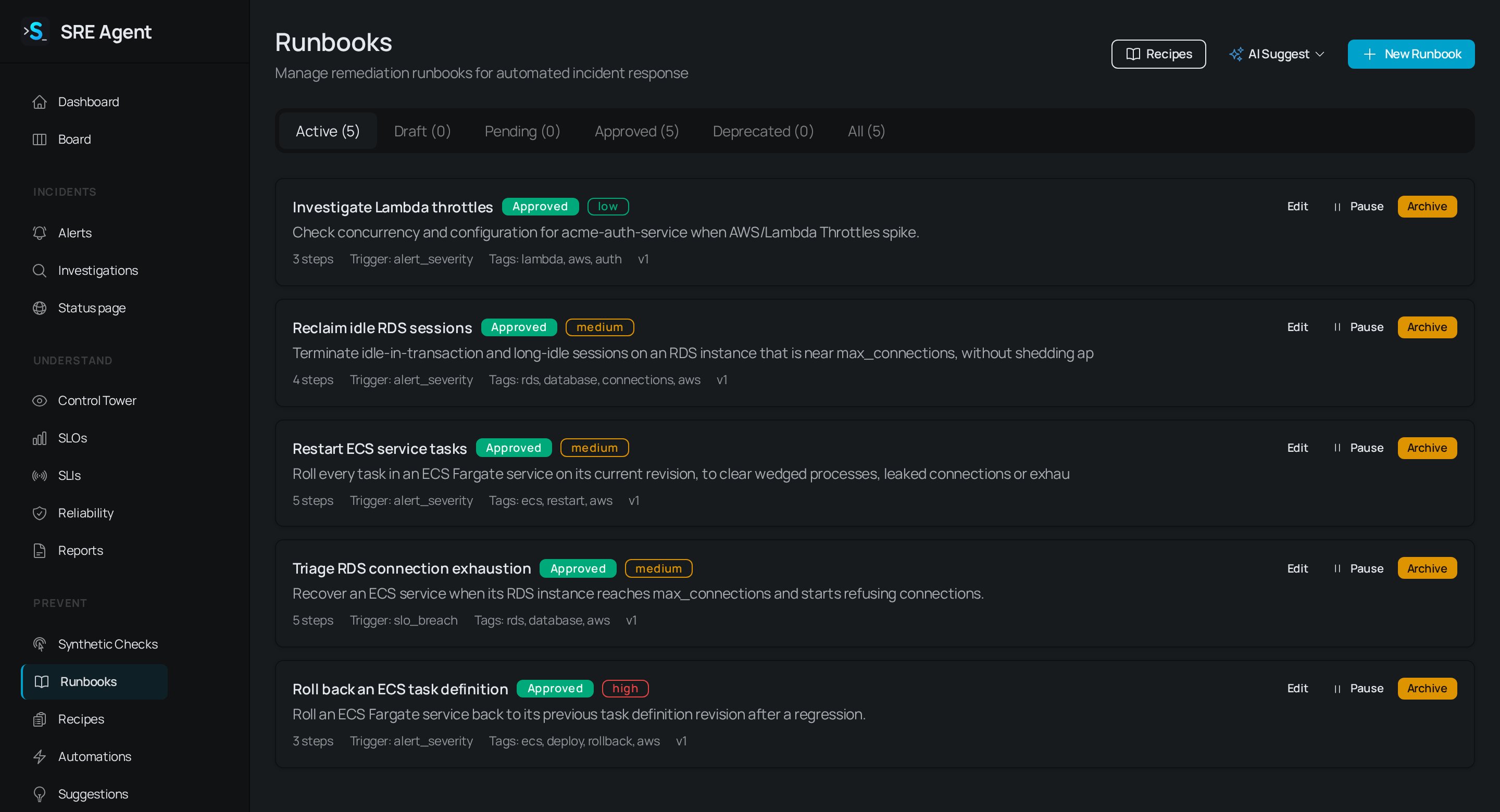
A runbook is an ordered list of steps SRE Agent can run against your infrastructure: restart a service, read a log group, run a check, or pause for a person. You write the fix down once, rehearse it, and approve it. After that it can run on demand, on a schedule, or when a matching alert fires.
Members can create and edit runbooks and start dry runs. Only an organization admin can approve one, so a runbook a member creates waits for an admin's approval before it can run for real. Plan for that before you rely on it during an incident.
 ## Start from a recipe
A recipe is a runbook template whose steps are generated from a few parameters.
Click **Recipes** in the sidebar. Use the category tabs to narrow the list, then click
**Configure** on a recipe.
The page lists the recipe's steps and a **Configuration** form. Checks above the form warn you
if the recipe needs a connector or data source you do not have. With several connectors of the
type the recipe uses, **Run across** lets you pick one connector or every enabled connector, one
run each.
Click **Install runbook**. If you change the recipe's approval mode, schedule or connector scope
and you cannot approve runbooks, it installs as a draft for an admin to sign off.
To change a recipe-based runbook, edit a parameter and click **Regenerate steps**. An approved runbook goes back to pending approval. **Edit steps directly** detaches it from the recipe for good, so use it only when the recipe cannot express what you need.
## Build a runbook yourself
On **Runbooks**, click **New Runbook**, or use **AI Suggest** to draft one **From Recent
Alerts**, **From Investigations** or **From SLO Breaches**. Enter a **Name**, a **Risk Level**
and a **Description**, and click **Save Runbook**.
Pick a **Trigger Type** (see below). For `scheduled`, enter a **Schedule (cron expression)**
such as `0 2 * * *`. Tick **Run automatically when a matching alert fires** to start
alert-triggered runs without a click.
Under **Who approves**, pick **Nobody**, **A person, once** or **A person at each risky step**.
Open the runbook with **Edit** and click **Add Step**. Under **Start from an action**, pick an
action, or fill in the form. Set the **Step Type**: `command` changes something, `check` reads
something, `condition` decides whether the next step runs, `approval_gate` pauses for a person,
and `input` asks a person for values. For `command` and `check`, set the **Target Type** (the
kind of system, such as `kubernetes` or `aws_ecs`), the **Connector**, and the action's fields.
Tick **High Risk** on a step that should stop for approval.
Click **Validate**. It checks that every step could run (connectors, actions, templates and
permissions) without changing anything.
Click **Dry run**, read the result, then ask an admin to click **Approve**.
Connectors live in **Settings** on the **Infrastructure** tab. For every action, template and verification option, see [Runbook actions and step reference](/guides/prevent/runbook-actions).
### Pick identifiers with Scan
Fields that name AWS infrastructure (`cluster`, `service`, `task_arn`, `function_name`, `instance_id`, `volume_id`, `asg_name`, `log_group`) have a **Scan** button. It lists what your account actually has, using the step's own connector, so you choose from a list. `service` and `task_arn` need a cluster first, so Scan stays disabled until the cluster field has a value.
* "Nothing found" is a real answer about your account. A role that cannot list says so and names the IAM action it is missing.
* You can always type the value. After a scan, **Type it manually** switches back to a text box.
An ECS task ARN changes every time a task is replaced. A saved runbook should not pin one.
Discover tasks at run time with a `list_tasks` step instead.
## Dry run and approval
A **dry run** is not a simulation. It runs every read step for real against your connectors, stops at the first write, and shows what that step would have dispatched. It is the only way to run a draft, which is why you can rehearse before anyone approves.
Editing an approved runbook's steps, triggers or approval settings sends it back to **pending approval**. Changing only its name, description, tags or risk level does not. **Pause** and **Resume** stop and restart its scheduled and alert-triggered runs.
| Who approves | What happens |
| - | - |
| **Nobody** | Runs without asking anyone. Use it for unattended runbooks with no high-risk steps. |
| **A person, once** | A person approves the run, then it runs to the end. Avoid it on a scheduled runbook: nobody may be awake to answer at the set time. |
| **A person at each risky step** | Asks before every high-risk step and before any write over more than one item. |
An `approval_gate` step pauses in every mode.
## Triggers
Only an approved runbook runs.
| Trigger Type | Fires on |
| - | - |
| `manual` | A person starting it from **Automations** |
| `alert_pattern` | Alerts matching the patterns attached to the runbook |
| `alert_severity` | Any critical or high alert |
| `slo_breach` | An SLO breach alert |
| `scheduled` | A cron schedule |
To start a run by hand, open **Automations**, click **Trigger Automation**, choose the runbook and click **Execute**. See [Automations](/guides/prevent/automations) for approving and reading runs.
Runs can post to Slack at the level you choose under **Notifications** on the runbook. Approval requests always post.
## Related
* [Use the Control Tower](/guides/prevent/control-tower): draft a runbook from a finding.
* [Triage alerts](/guides/respond/alerts): the alerts that trigger a runbook.
* [Limits](/guides/reference/limits): runbook and fan-out limits.
* [Troubleshooting](/guides/reference/troubleshooting): why a runbook step is refused.
This documentation is built and hosted on [Mintlify](https://mintlify.com), a developer documentation platform.
## Start from a recipe
A recipe is a runbook template whose steps are generated from a few parameters.
Click **Recipes** in the sidebar. Use the category tabs to narrow the list, then click
**Configure** on a recipe.
The page lists the recipe's steps and a **Configuration** form. Checks above the form warn you
if the recipe needs a connector or data source you do not have. With several connectors of the
type the recipe uses, **Run across** lets you pick one connector or every enabled connector, one
run each.
Click **Install runbook**. If you change the recipe's approval mode, schedule or connector scope
and you cannot approve runbooks, it installs as a draft for an admin to sign off.
To change a recipe-based runbook, edit a parameter and click **Regenerate steps**. An approved runbook goes back to pending approval. **Edit steps directly** detaches it from the recipe for good, so use it only when the recipe cannot express what you need.
## Build a runbook yourself
On **Runbooks**, click **New Runbook**, or use **AI Suggest** to draft one **From Recent
Alerts**, **From Investigations** or **From SLO Breaches**. Enter a **Name**, a **Risk Level**
and a **Description**, and click **Save Runbook**.
Pick a **Trigger Type** (see below). For `scheduled`, enter a **Schedule (cron expression)**
such as `0 2 * * *`. Tick **Run automatically when a matching alert fires** to start
alert-triggered runs without a click.
Under **Who approves**, pick **Nobody**, **A person, once** or **A person at each risky step**.
Open the runbook with **Edit** and click **Add Step**. Under **Start from an action**, pick an
action, or fill in the form. Set the **Step Type**: `command` changes something, `check` reads
something, `condition` decides whether the next step runs, `approval_gate` pauses for a person,
and `input` asks a person for values. For `command` and `check`, set the **Target Type** (the
kind of system, such as `kubernetes` or `aws_ecs`), the **Connector**, and the action's fields.
Tick **High Risk** on a step that should stop for approval.
Click **Validate**. It checks that every step could run (connectors, actions, templates and
permissions) without changing anything.
Click **Dry run**, read the result, then ask an admin to click **Approve**.
Connectors live in **Settings** on the **Infrastructure** tab. For every action, template and verification option, see [Runbook actions and step reference](/guides/prevent/runbook-actions).
### Pick identifiers with Scan
Fields that name AWS infrastructure (`cluster`, `service`, `task_arn`, `function_name`, `instance_id`, `volume_id`, `asg_name`, `log_group`) have a **Scan** button. It lists what your account actually has, using the step's own connector, so you choose from a list. `service` and `task_arn` need a cluster first, so Scan stays disabled until the cluster field has a value.
* "Nothing found" is a real answer about your account. A role that cannot list says so and names the IAM action it is missing.
* You can always type the value. After a scan, **Type it manually** switches back to a text box.
An ECS task ARN changes every time a task is replaced. A saved runbook should not pin one.
Discover tasks at run time with a `list_tasks` step instead.
## Dry run and approval
A **dry run** is not a simulation. It runs every read step for real against your connectors, stops at the first write, and shows what that step would have dispatched. It is the only way to run a draft, which is why you can rehearse before anyone approves.
Editing an approved runbook's steps, triggers or approval settings sends it back to **pending approval**. Changing only its name, description, tags or risk level does not. **Pause** and **Resume** stop and restart its scheduled and alert-triggered runs.
| Who approves | What happens |
| - | - |
| **Nobody** | Runs without asking anyone. Use it for unattended runbooks with no high-risk steps. |
| **A person, once** | A person approves the run, then it runs to the end. Avoid it on a scheduled runbook: nobody may be awake to answer at the set time. |
| **A person at each risky step** | Asks before every high-risk step and before any write over more than one item. |
An `approval_gate` step pauses in every mode.
## Triggers
Only an approved runbook runs.
| Trigger Type | Fires on |
| - | - |
| `manual` | A person starting it from **Automations** |
| `alert_pattern` | Alerts matching the patterns attached to the runbook |
| `alert_severity` | Any critical or high alert |
| `slo_breach` | An SLO breach alert |
| `scheduled` | A cron schedule |
To start a run by hand, open **Automations**, click **Trigger Automation**, choose the runbook and click **Execute**. See [Automations](/guides/prevent/automations) for approving and reading runs.
Runs can post to Slack at the level you choose under **Notifications** on the runbook. Approval requests always post.
## Related
* [Use the Control Tower](/guides/prevent/control-tower): draft a runbook from a finding.
* [Triage alerts](/guides/respond/alerts): the alerts that trigger a runbook.
* [Limits](/guides/reference/limits): runbook and fan-out limits.
* [Troubleshooting](/guides/reference/troubleshooting): why a runbook step is refused.
This documentation is built and hosted on [Mintlify](https://mintlify.com), a developer documentation platform.